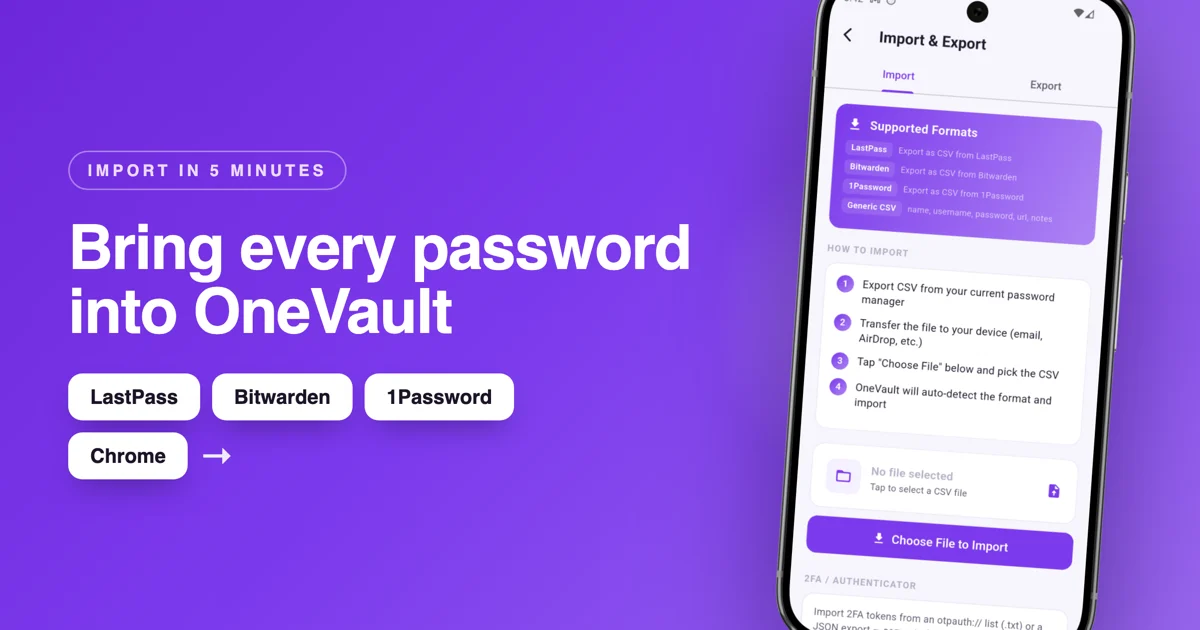
The thing that keeps most people stuck on a password manager they've outgrown is the fear of moving everything by hand. Good news: you don't have to. Every major manager, and Chrome itself, can export your whole vault to a single CSV file, and OneVault reads those files directly. The process is the same no matter where you're coming from: export, import, clean up.
What OneVault can import
CSV exports from LastPass, Bitwarden, 1Password, Chrome and Edge, plus the generic CSV format most other managers produce. If your current app can export a CSV, OneVault can almost certainly read it.
Step 1: Export your passwords to a CSV file
First, get your logins out of your current app as a CSV. The menu wording differs slightly, but the option is always there.
From Chrome
Open chrome://password-manager/passwords, tap the settings gear, and choose Download file under Export passwords. You'll be asked to confirm with your device unlock.
From LastPass
In the browser extension or web vault, go to Advanced Options › Export. LastPass will produce a CSV of every entry. On mobile you may need to do this from a desktop browser.
From Bitwarden
Open the web vault, go to Tools › Export vault, choose the .csv format, and confirm with your master password.
From 1Password
In the desktop app, select your vault, then use File › Export and pick CSV. 1Password requires your account password to confirm the export.
Handle that CSV carefully
A password CSV is a plain-text file with every one of your logins readable inside it. Don't email it to yourself, don't drop it in a shared folder, and don't leave it in your Downloads. You'll delete it in Step 3, so keep it on the device only as long as the import takes.
Step 2: Import the file into OneVault
Get the CSV onto your Android phone if you exported it on a computer. A USB cable or a quick transfer to your own cloud drive both work, just remember to remove it afterward.
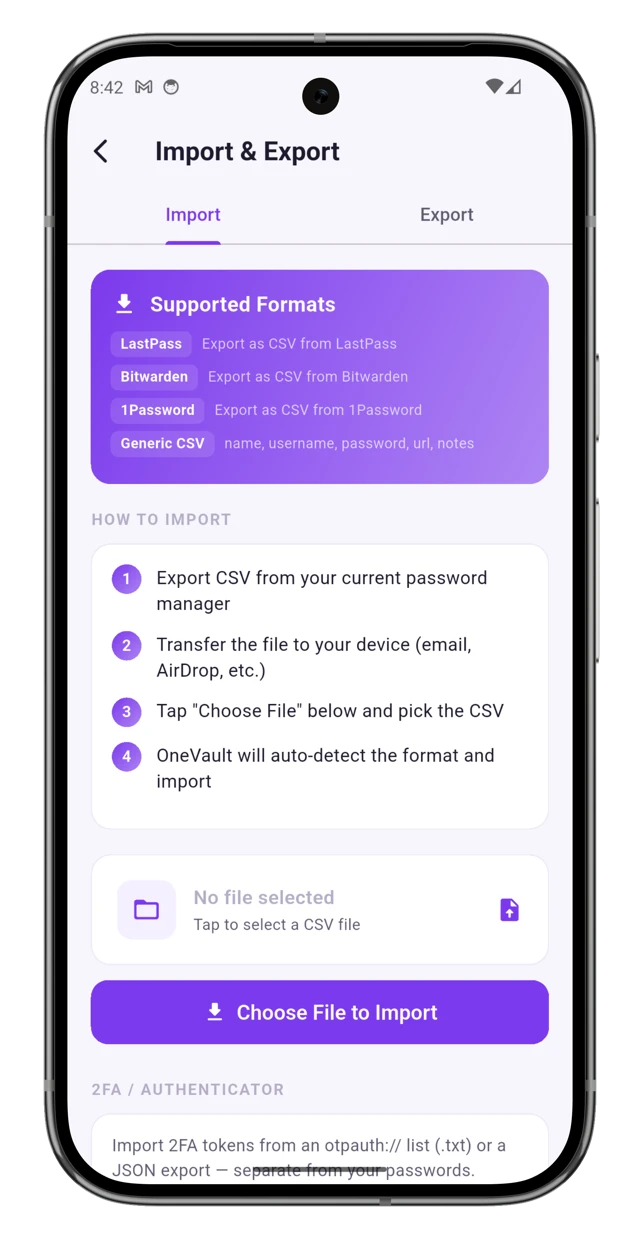
- Open OneVault and unlock your vault.
- Go to Settings › Import / Export.
- Choose Import, then pick the source that matches your old app (LastPass, Bitwarden, 1Password or Generic CSV).
- Select the CSV file with the file picker and confirm.
OneVault reads the file, encrypts every entry on your device, and adds them to your vault. Take a moment to scroll through and check that logins came across with their usernames and passwords intact.
On the free tier?
The free plan holds up to ten items. If your export is larger, import will bring in what fits, and a single one-time upgrade removes the limit so the rest come through. There's no subscription, so it's a one-and-done unlock.
Step 3: Clean up and lock things down
This is the step people skip, and it's the most important one for your security.
- Delete the CSV file from your phone and computer, including the Downloads folder and your trash or recycle bin. It's plain text and no longer needed.
- Turn off password saving in your browser so you don't start rebuilding the pile you just left. Our piece on why browser-saved passwords are a risk explains why this matters.
- Remove passwords from your old manager once you've confirmed everything imported, and close the account if you're done with it.
- Set up an encrypted backup in OneVault to your own Google Drive or WebDAV server, so your newly moved vault is safe if you lose your phone.
A few common questions
Will my 2FA codes come across?
Password CSVs don't include your two-factor secrets, so those don't migrate through the import. You can add them separately in OneVault's built-in authenticator, either by scanning the QR code again or entering the setup key.
What about credit cards and notes?
Some exports include cards and secure notes and some don't, depending on the source app. Anything that isn't in the CSV can be added by hand in a minute or two.
Is importing safe?
The import happens entirely on your device. OneVault encrypts each entry locally as it reads them, and nothing is uploaded during the process. The only exposed moment is the plain-text CSV itself, which is why deleting it in Step 3 matters.
Ready to make the move?
Bring your passwords into a vault that stays on your phone, with no subscription and no account. Start free and import in minutes.
Get OneVault free on Google Play →Not sure OneVault is the right home for your logins yet? Compare it against the field in our 2026 password manager comparison, or if you're specifically escaping LastPass, see the best LastPass alternatives.