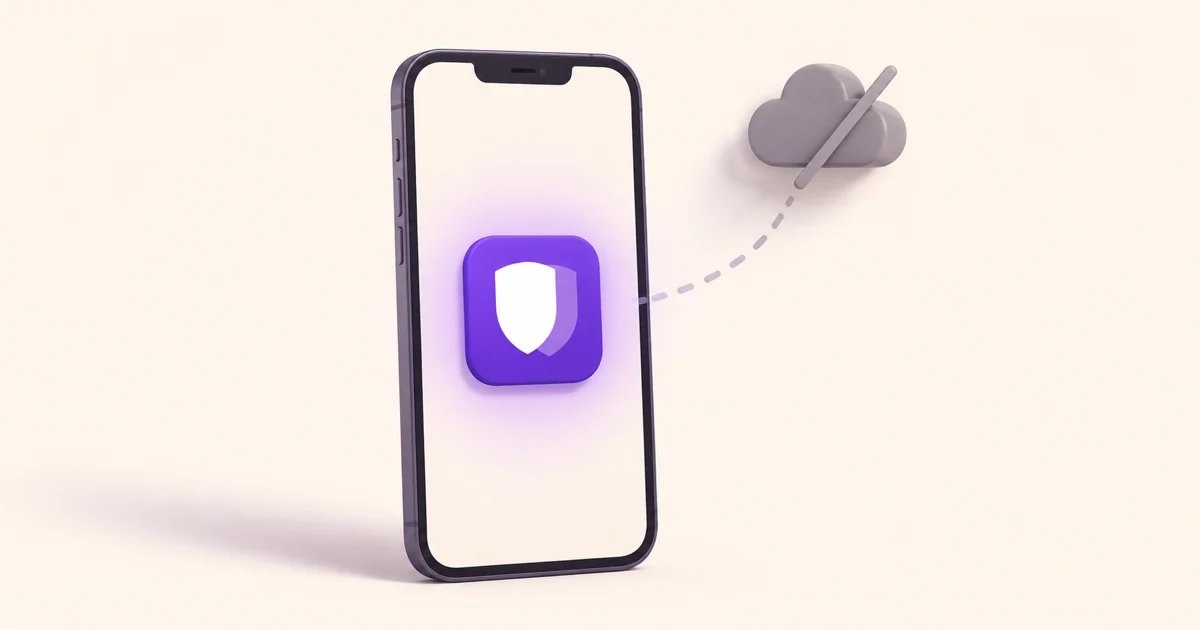
Most password managers need the cloud to function. Your vault syncs to their servers, and the app leans on that connection to work properly. That's convenient, but it also means a copy of your logins sits on hardware you don't control, and the app quietly phones home in the background. An offline password manager flips that arrangement: your vault lives on your phone, the app works whether or not you have signal, and nothing is uploaded unless you decide it should be.
For a lot of people that's a better fit, and not only for the tinfoil-hat reasons. Let's go through what going local actually gets you.
What "offline" really means for your privacy
When people say offline password manager, they usually mean two related things: the app works without an internet connection, and it doesn't store your data on a company's servers. The second part is the one that matters most for privacy.
Every cloud password manager, no matter how good its encryption, has a central store of everyone's vaults. That store is a target. It doesn't matter that the vaults are encrypted if the encryption is only as strong as the weakest master password in the pile, and attackers get unlimited offline attempts once they have the file. We've seen exactly this play out with major providers. A local-first app has no such store. There is nothing central to steal, because your vault only ever exists on your device.
The simple version
Cloud manager: your encrypted vault lives on their servers and on your device. Offline manager: it lives only on your device. Fewer copies in fewer places means fewer ways for it to leak.
The practical upsides you'll actually notice
- It works everywhere. On a plane, in a basement parking garage, on a train through a tunnel, your passwords are right there. No spinner waiting for sync.
- Nothing to sign up for. A truly local app doesn't need your email or an account. You install it and start using it.
- No background tracking. If the app isn't talking to a server, it isn't quietly reporting on what you do.
- You decide about backups. Backup becomes a choice you make, to a place you pick, rather than a default you can't turn off.
The one honest trade-off: sync
Offline has a genuine downside worth naming. If your vault only lives on one phone and that phone is lost or broken, you need a way to get your passwords back. Old-school offline apps solved this by making you copy a vault file around by hand, which is fiddly and easy to get wrong.
The better modern approach keeps the local-first benefits but adds optional, encrypted backup that you control. Instead of syncing your vault to the app maker's servers, it backs up to your own Google Drive or your own WebDAV server, sealed so tightly that only your master password can open it. You get the safety net of a backup without handing your data to a company. That's the model OneVault uses.
How to spot a genuinely offline app
Plenty of apps use words like "private" and "secure" while still routing your vault through their cloud. A few checks cut through the marketing:
- Does it require an account or email to start? If yes, your data is probably going somewhere.
- Does it work with the internet turned off, right after install? Toggle airplane mode and add an entry. A local app won't care.
- Where does backup go? The good answer is "a cloud you choose" or "nowhere unless you ask," not "our servers."
- What encryption does it use? Look for AES-256 or XChaCha20 paired with a memory-hard key derivation function like Argon2id. Our plain-English encryption guide explains why that pairing matters.
OneVault: local-first, built for Android
OneVault was designed around this exact idea. Your vault stays on your Android phone, encrypted with a key derived from your master password using Argon2id, and the app works fully offline from the moment you install it. There's no account and no email required. When you want a backup, it goes to your own Google Drive or WebDAV server in an encrypted form only you can unlock. On top of that you get a built-in 2FA authenticator, encrypted card and note storage, and biometric unlock, all without a subscription.
A private vault that never needs the cloud
OneVault keeps your passwords, 2FA codes and cards on your Android device, working with or without internet. No account, no ads, free to start.
Download OneVault free on Google Play →Coming from a cloud manager? Moving over takes a few minutes, and we cover the steps in how to import your passwords into OneVault. If you're still comparing options, the 2026 password manager comparison shows which apps are genuinely local and which only claim to be.