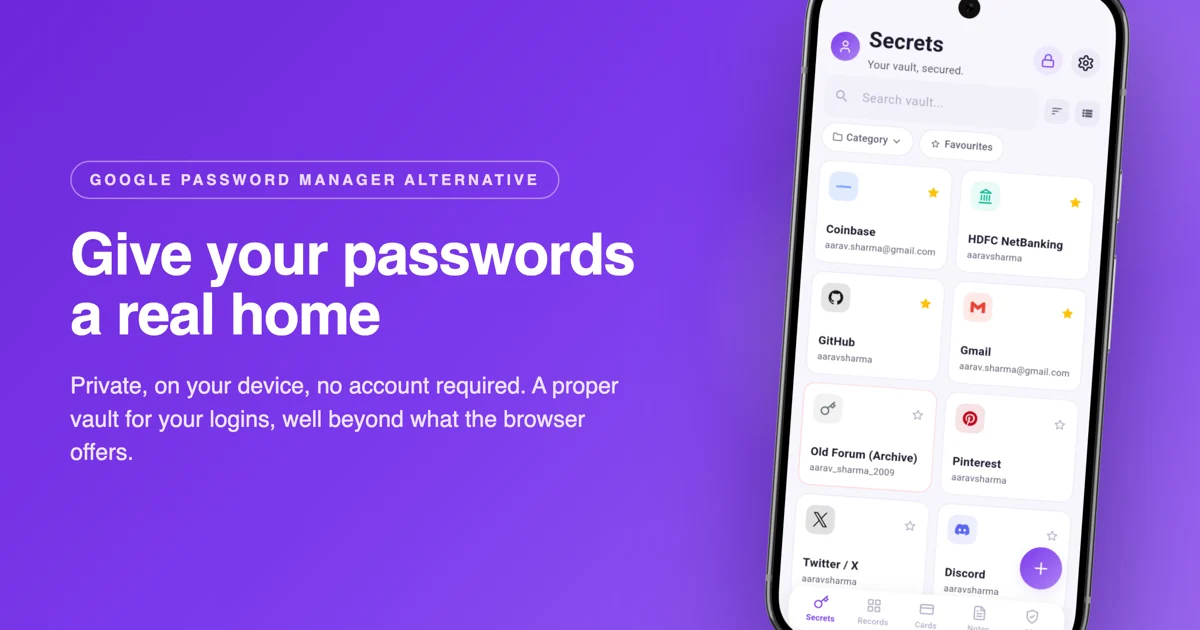
Google Password Manager is convenient, and that's the whole point of it. It's built into Chrome and Android, it offers to save logins as you go, and it fills them back in without a second app. For a lot of people it's the first password manager they ever used, usually without deciding to.
Convenient isn't the same as ideal, though. The moment you think about switching browsers, leaving the Google ecosystem, or storing anything more than a login and password, the cracks show. If any of the reasons below sound familiar, it's worth looking at what else is out there.
Why people leave Google Password Manager
- It's tied to your Google account and browser. Your vault effectively lives inside Chrome and your Google login. Switch browsers or want distance from Google, and your passwords don't come with you cleanly.
- It stores logins, and not much else. There's no proper home for card details, secure notes, or two-factor codes. You end up scattering those across other apps, which is the exact problem a real vault is supposed to solve.
- By default it syncs to Google's servers. On-device encryption is an option you have to find and turn on. Out of the box, your passwords are readable by more than just you.
- The password checkup lives in the browser. Warnings about weak or breached passwords are useful, but they're bolted to Chrome rather than a dedicated security dashboard.
Is Google Password Manager safe?
It's reasonably secure for what it is, and far better than reusing one password everywhere. The concern is less "will it get hacked" and more about control: your vault is bound to a single company's browser and account, synced to their cloud by default, and limited to passwords. An alternative gives you portability, more data types, and in some cases a vault no server can read at all.
The best alternatives at a glance
| Alternative | Where your vault lives | Price | Best for |
|---|---|---|---|
| OneVault | Your device | Free / $14.99 once | Privacy and no subscription |
| Bitwarden | Cloud / self-host | Free / ~$10 a year | Best free cloud option |
| Proton Pass | Cloud (Proton) | Free / paid tiers | Privacy-focused cloud |
| 1Password | Cloud (their servers) | ~$36 a year | Families who want polish |
| KeePassXC | Local file | Free | Desktop purists |
1. OneVault: the pick if you want your vault off the cloud
OneVault takes the opposite approach to Google. Your vault is encrypted and stored on your phone, not on a company server, and there's no account to create. It holds passwords, credit cards, secure notes and two-factor codes in one place, so the things Google leaves out finally have a home. Backups, when you want them, go to your own Google Drive or a WebDAV server as an encrypted blob that only your master password can open.
Strengths
On-device, zero-knowledge encryption. No account, works offline. Passwords, cards, notes and 2FA in one vault. One-time purchase, no subscription.Trade-offs
Android-first, so it isn't the pick if you live on iPhone and desktop. You manage your own backups rather than leaning on a company cloud.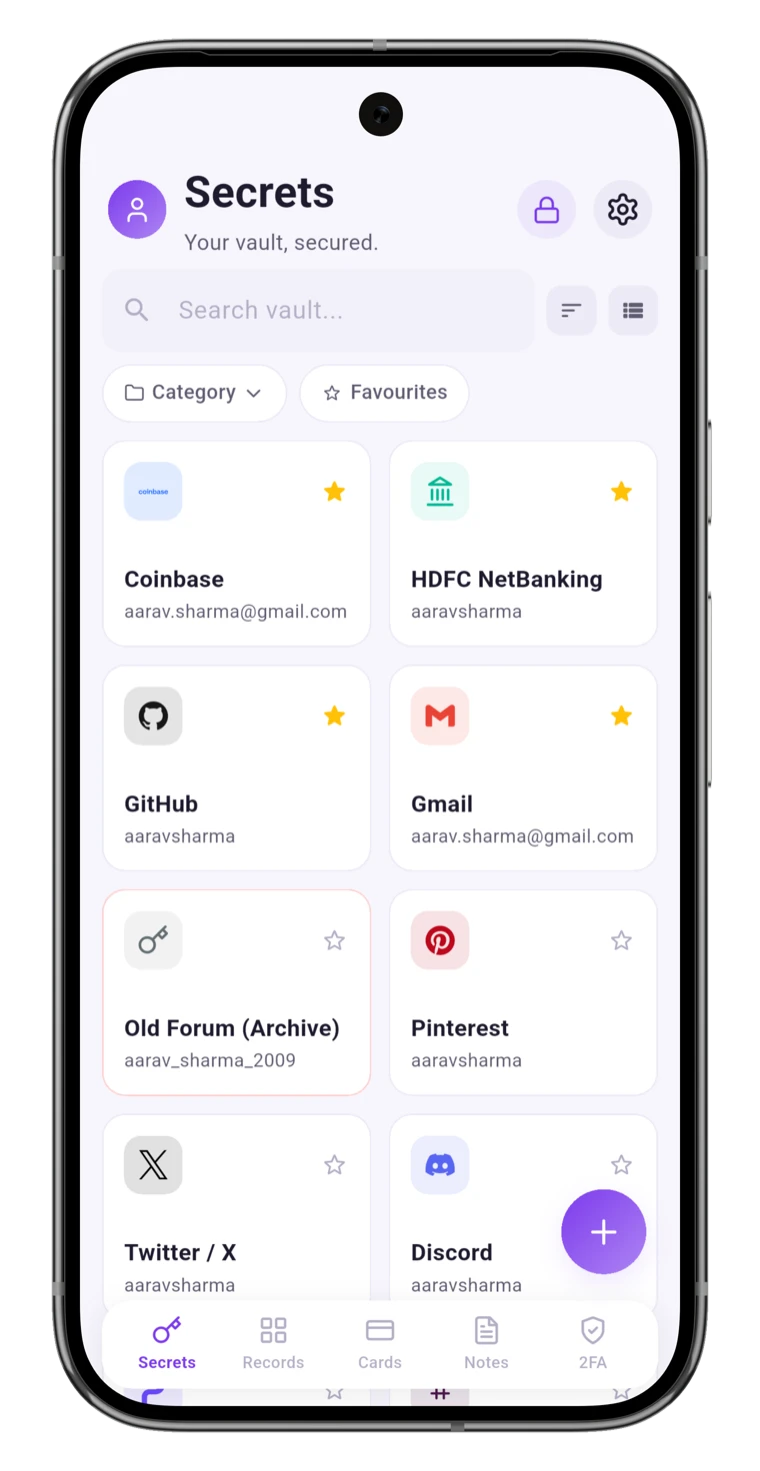
2. Bitwarden: the best free cloud replacement
If you want the familiar cloud-sync experience but with an app whose whole business is password management, Bitwarden is the obvious step up from Google. It's open source, the free tier is genuinely generous, and it runs on every platform. Your vault still lives on a server, but it's end-to-end encrypted and you can self-host if you'd rather. For most people leaving Google who still want sync, this is the safe default.
3. Proton Pass: cloud, from a company built on privacy
Proton made its name on encrypted email, and Proton Pass brings the same posture to passwords. It's cloud-based, but the company's model is privacy first rather than advertising, which is a meaningfully different starting point from Google. A good fit if you want sync across devices and trust the provider's incentives.
4. 1Password: if you'd rather pay for polish
1Password is the most refined option here, with strong family sharing and a huge feature set. It's a subscription and your vault sits on their servers, so it's the opposite of the "own it outright" approach, but if you want the smoothest cross-platform experience and don't mind paying yearly, it delivers.
5. KeePassXC: total control for desktop users
KeePassXC keeps your passwords in a single encrypted file that you own and sync however you like. It's free, open source, and about as private as it gets, but it's desktop-centric and expects you to handle syncing yourself. Great for tinkerers, less so if you want something that just works on your phone.
How to switch away from Google Password Manager
Moving off Chrome's built-in manager is quicker than it sounds, and it's the same three steps no matter which app you land on.
- Export from Chrome. Open chrome://password-manager/passwords, tap the settings gear, and choose Download file to get a CSV.
- Import into your new app. Every option above reads a CSV. In OneVault it's Settings › Import / Export, and our step-by-step import guide covers the details.
- Turn off Chrome's offer to save passwords so you don't quietly rebuild the pile you just left, then delete the CSV.
Ready to own your passwords?
OneVault keeps your logins, cards, notes and 2FA codes encrypted on your phone, with no account and no subscription. Start free and import from Chrome in minutes.
Get OneVault free on Google Play →The bottom line
Google Password Manager is a fine starting point and a poor finish line. If you want sync and a trusted provider, Bitwarden or Proton Pass are excellent. If you want your vault to belong to you, live on your device, and hold more than just passwords, that's where OneVault comes in.
Still comparing? Read the full 2026 password manager ranking, see why browser-saved passwords are a risk in the first place, or if you're specifically escaping LastPass, the best LastPass alternatives. Once you've moved, it's a good moment to set up an authenticator app for the accounts that matter most.