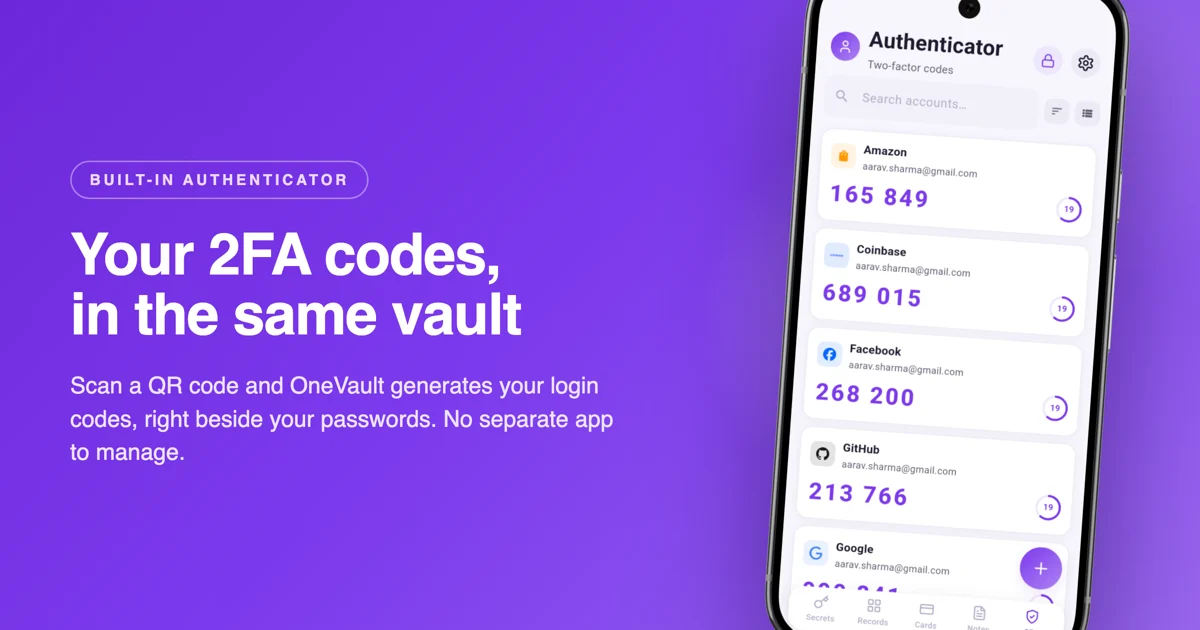
A password alone is a single point of failure. If it leaks in a breach, gets phished, or someone guesses it, that's the whole lock picked. Two-factor authentication, usually shortened to 2FA, adds a second lock: a short code that changes every 30 seconds and lives only on your phone. Even if someone has your password, they can't get in without that code.
An authenticator app is what generates those codes. It's better than getting them by text message, and once it's set up you barely think about it. Let's walk through the whole thing.
What you'll need
An account that supports 2FA (most banks, email providers, social networks and crypto exchanges do), and an authenticator on your phone. OneVault has one built in, right alongside your passwords, so you don't need a separate app like Google Authenticator or Authy.
Why an authenticator app beats SMS codes
Plenty of sites still offer to text you a code. It's better than nothing, but it's the weakest form of 2FA, and here's why:
- SIM swapping. An attacker who convinces your carrier to move your number to their SIM starts receiving your texts, codes included. It happens more than you'd think.
- Texts can be intercepted. The network that carries SMS was never built to be secure, and codes can be read in transit.
- No signal, no code. On a plane, abroad, or in a dead zone, a texted code never arrives. An authenticator app works completely offline.
An authenticator generates the code on your device using a shared secret and the current time. Nothing is sent over the network, so there's nothing to intercept and no number to hijack.
Step 1: Turn on 2FA for the account
Start on the service you want to protect, not in the authenticator. The setting is almost always under account security.
Find the security settings
Log in to the website or app and look for Settings › Security, then an option called Two-Factor Authentication, 2-Step Verification or Authenticator app. Choose the authenticator-app option rather than SMS.
Reveal the QR code
The site will show a QR code, and usually a short text key underneath it in case you can't scan. Keep that screen open, you're about to point OneVault at it.
Step 2: Add the account in OneVault
Now open OneVault and unlock your vault. Tap the 2FA tab at the bottom, then the + button to add an account. You have two ways to do it.
- Scan QR is the quick path. Point your camera at the QR code on the other screen and OneVault reads the secret automatically.
- Manual is the fallback. Type a name for the account and paste the text key the site showed you. Handy when the QR code is on the same phone you're setting things up on.
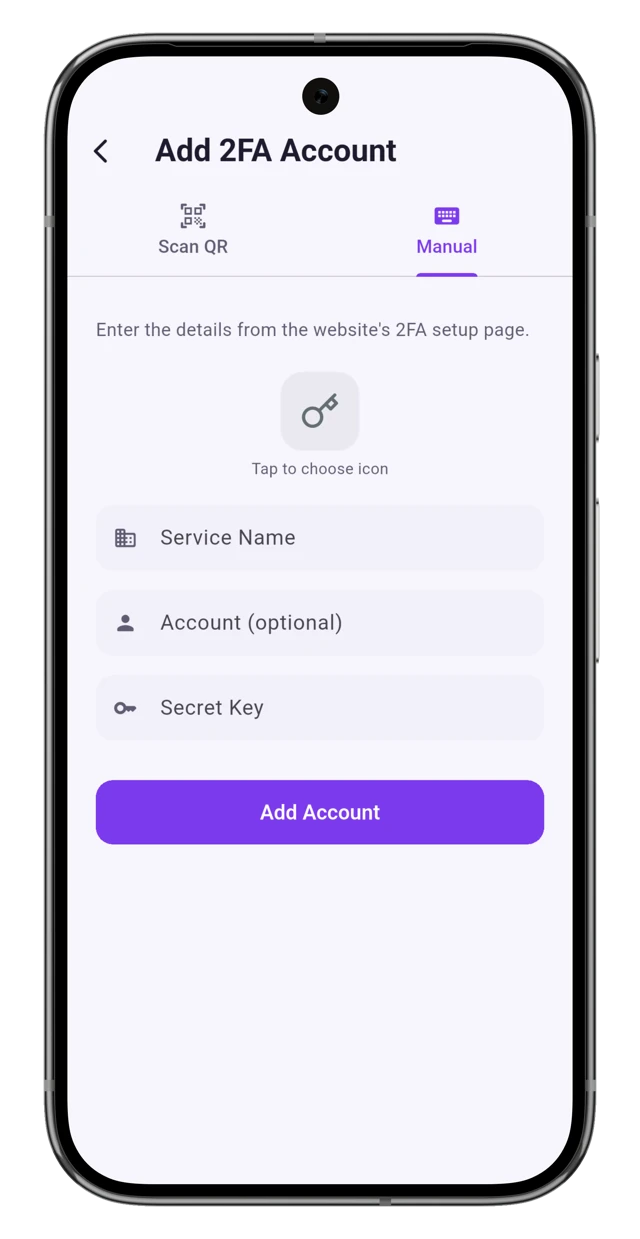
Once it's added, OneVault starts generating a six-digit code that refreshes on a timer. That's your authenticator working.
Step 3: Confirm the code and save your backups
Almost done. Two small things separate a setup that works from one that locks you out later.
Enter the current code to verify
Back on the website, it will ask you to type the code OneVault is showing. This proves the two are in sync. Enter it before the timer runs out and the site confirms 2FA is on.
Save the recovery codes
Most services hand you a set of one-time backup codes at this point. Save them somewhere safe. A secure note in OneVault is a good home, since it's encrypted and always with you.
Don't skip the recovery codes
Recovery codes are your way back in if you ever lose access to your authenticator. Save them the moment they're offered. If you close that screen without copying them, some services won't show them again.
Why keep 2FA codes with your passwords
There's an old habit of putting passwords in one app and 2FA codes in another, on the theory that splitting them is safer. In practice, for most people, it mainly makes logging in a chore, and a chore is the thing you eventually stop doing.
OneVault keeps both in one encrypted vault on your device. When you go to sign in, your password and your live code are a tap apart, which means you're far more likely to keep 2FA turned on everywhere. The vault is encrypted with AES-256 and only opens with your master password or biometric, so "together" doesn't mean "exposed."
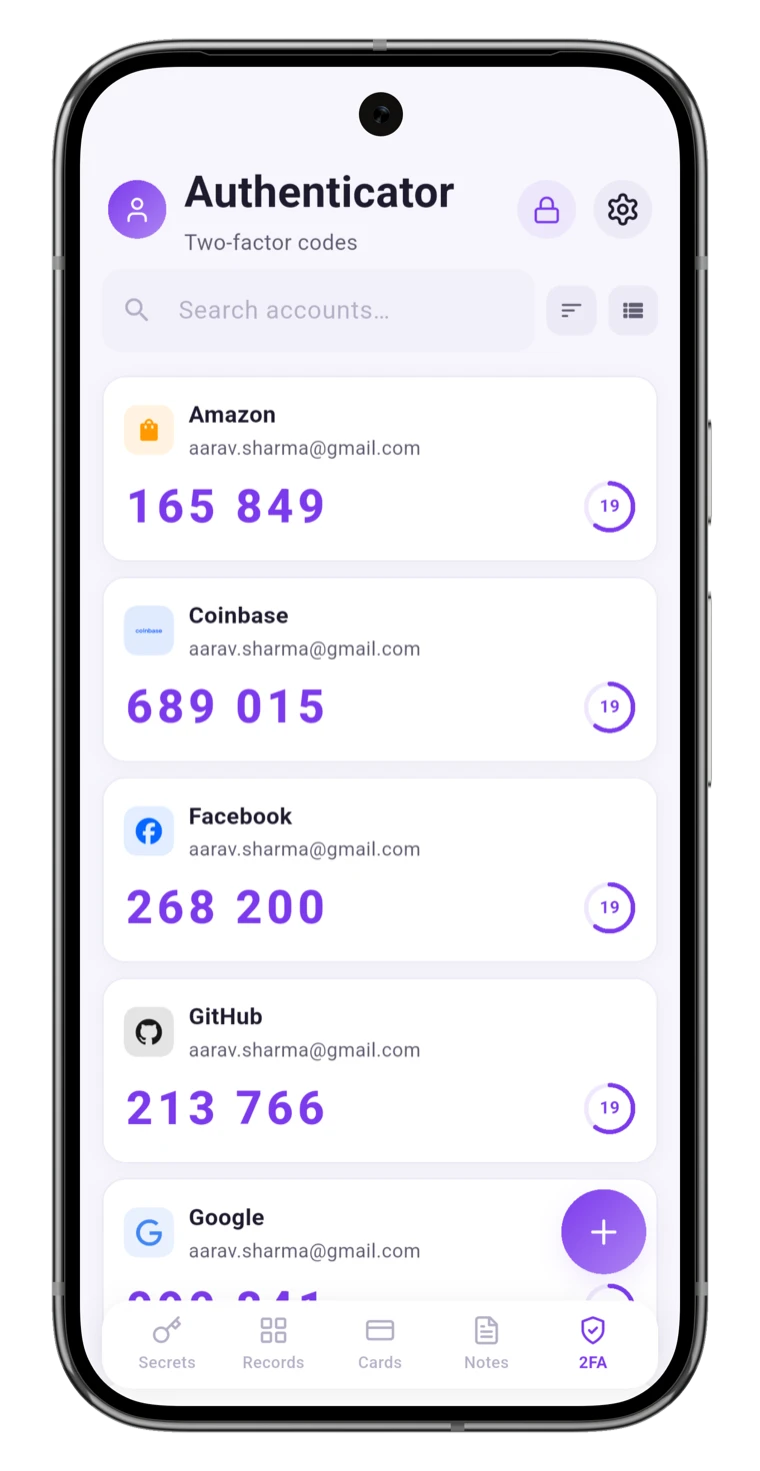
It also works with no internet connection, which matters more than people expect. Codes are generated from the time and a stored secret, so they keep ticking on a flight or in another country. If a local-first setup appeals to you, our piece on offline password managers for Android goes deeper.
A few common questions
Is it safe to keep passwords and 2FA in the same app?
Yes, as long as the app is a real zero-knowledge vault. OneVault encrypts everything on your device and never uploads a readable copy, so the risk isn't "one app holds both," it's whether anyone else can open that app. With a strong master password and biometric lock, they can't.
What happens if I lose my phone?
This is exactly what the recovery codes are for, so save them. On top of that, OneVault can back up an encrypted copy of your vault to your own Google Drive or a WebDAV server, so you can restore your codes on a new phone with your master password.
Does the authenticator work offline?
Completely. Codes are calculated from your stored secret and the current time, with no server involved. Airplane mode has no effect on it.
Can I move my codes from Google Authenticator?
You can re-add each account by turning 2FA off and on again at the source and scanning the fresh QR code, or by exporting from your old app and importing the tokens. OneVault reads standard otpauth:// secrets, so nothing about your accounts is proprietary.
Passwords and 2FA, one private vault
Set up your logins and your two-factor codes in the same encrypted app, on your phone, with no account and no subscription. Start free.
Get OneVault free on Google Play →New to OneVault and bringing logins over from somewhere else? Start with our guide on how to import your passwords, and if you're still weighing options, see the 2026 password manager comparison. If you've been relying on your browser to remember logins, here's why that's a risk worth fixing.